Asset
What an Asset is used for
An Asset is the same thing as a workstation in Autoliv. It is the place where the operator acts and where work is performed.
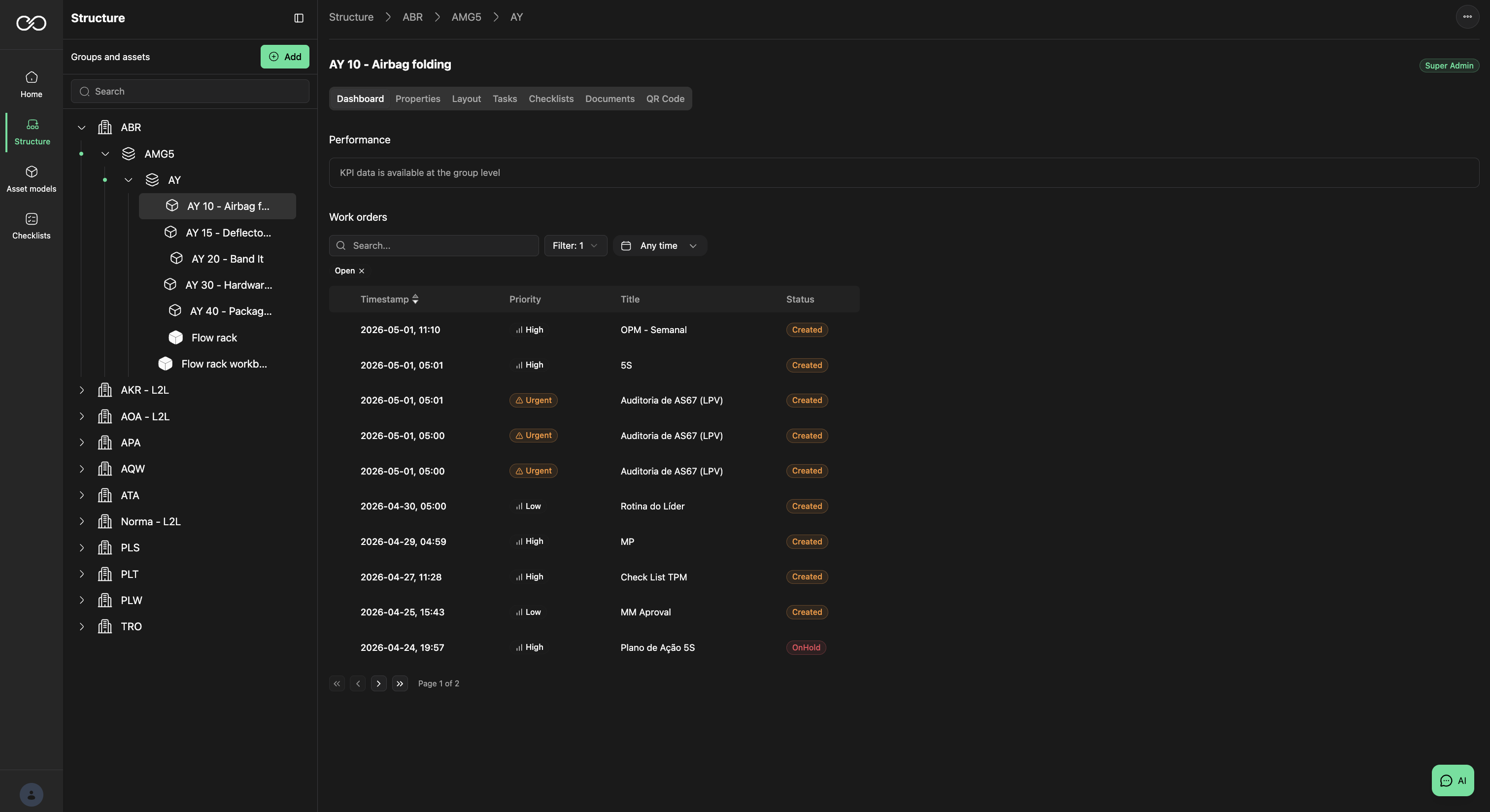
Dashboard
The Dashboard is the overview of the Asset. It shows performance KPIs and Workorders, live when connected to a backend system.
Properties
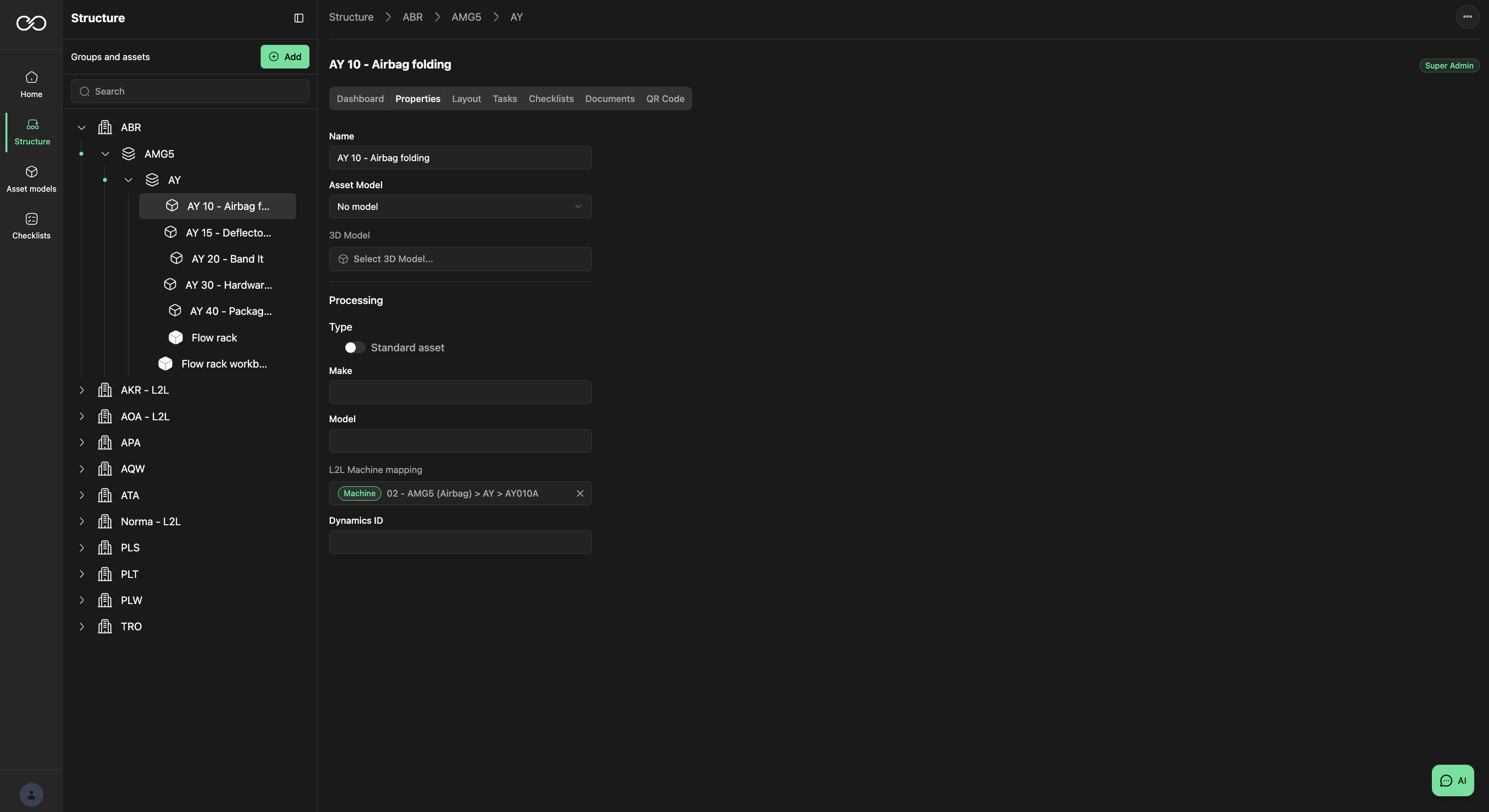
The Properties tab holds the basic information about an Asset:
- Name — Asset name.
- Asset Model — set if the Asset uses an Asset Model as a template. If an Asset Model is set, all attributes are inherited from it and cannot be changed.
- 3D Model — if the Asset has a 3D model assigned to it.
- Type — defines whether the Asset is a standard Asset or a Feeding Asset
- Make — the make of the Asset
- Model — the model of the Asset
Layout
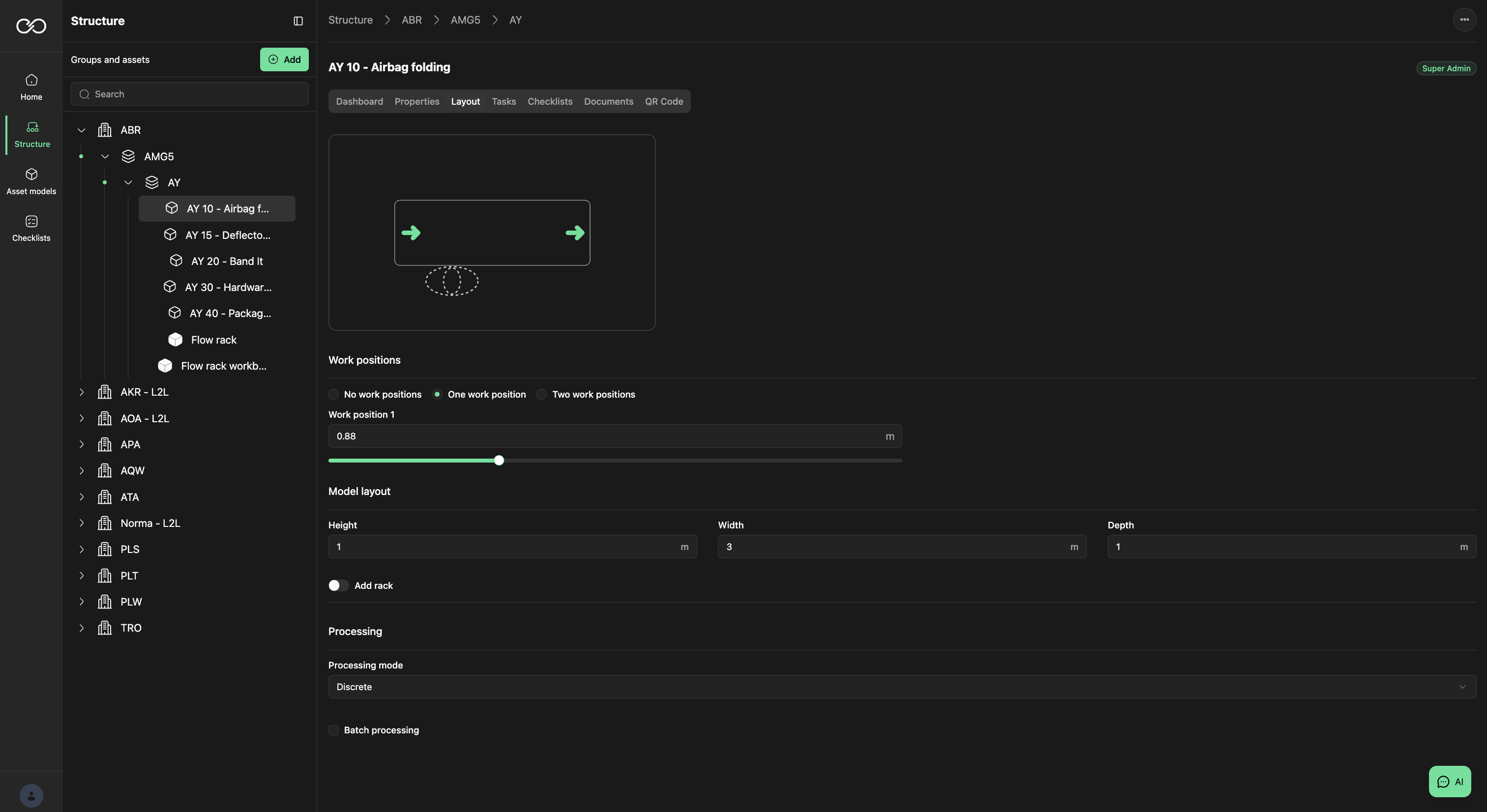
Layout is the physical description of the Asset:
- Work position — how many workstations the asset has. Possible values: 0, 1 or 2. 0 is used for a fully automated Asset.
- Work position (placement) — distance from the side where each work position is placed. Adjust by typing the distance or using the bar.
- Dimensions — Height, Width, and Depth of the asset.
- Processing — describes whether the asset has a continuous flow or a discrete process, and whether the asset is Batch processing.
Task
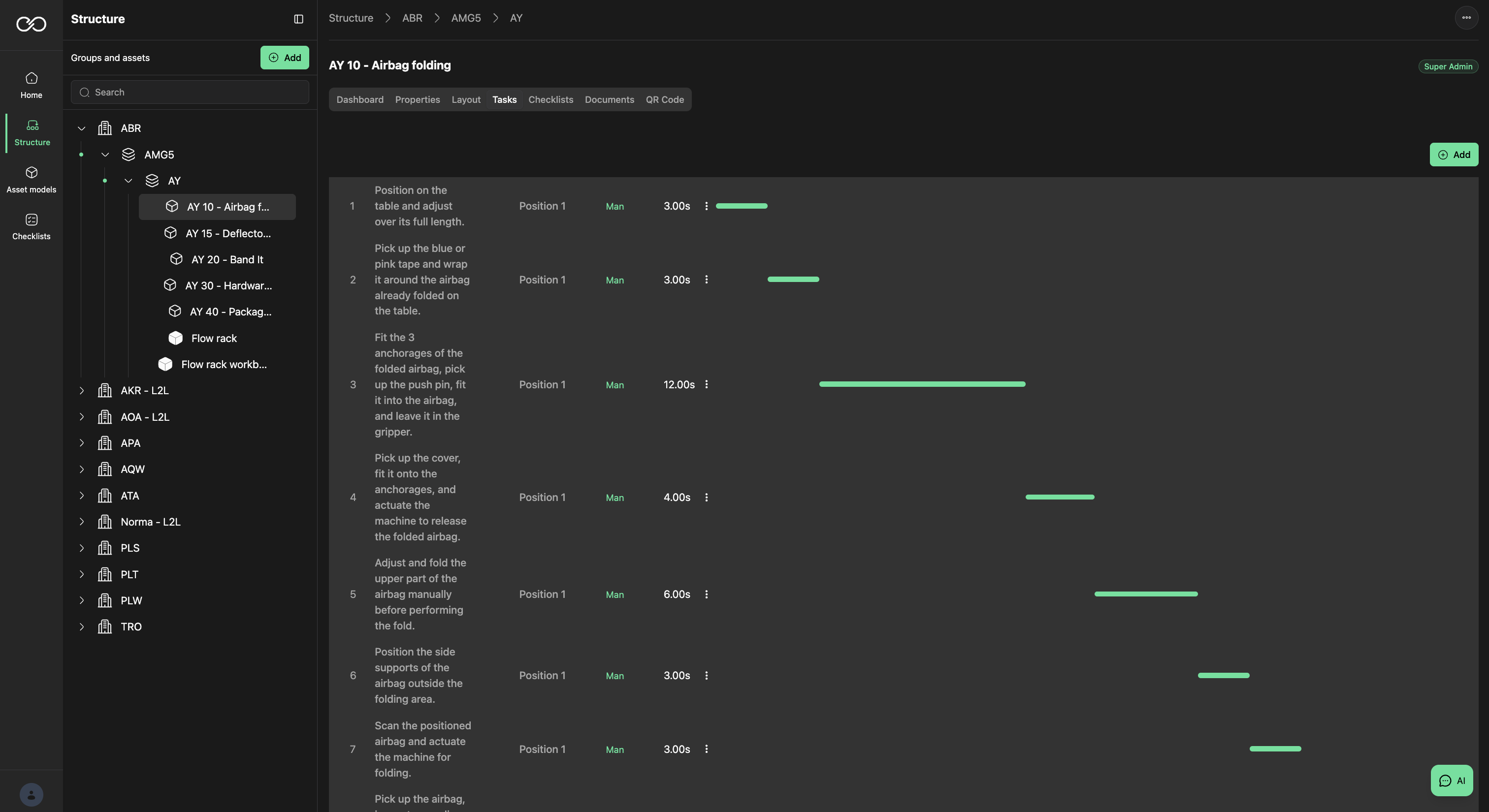
The Task tab describes the tasks at an Asset. Add a task by selecting Add. Field guidance is the same as for Asset Model tasks (Chapter 6).
Checklist
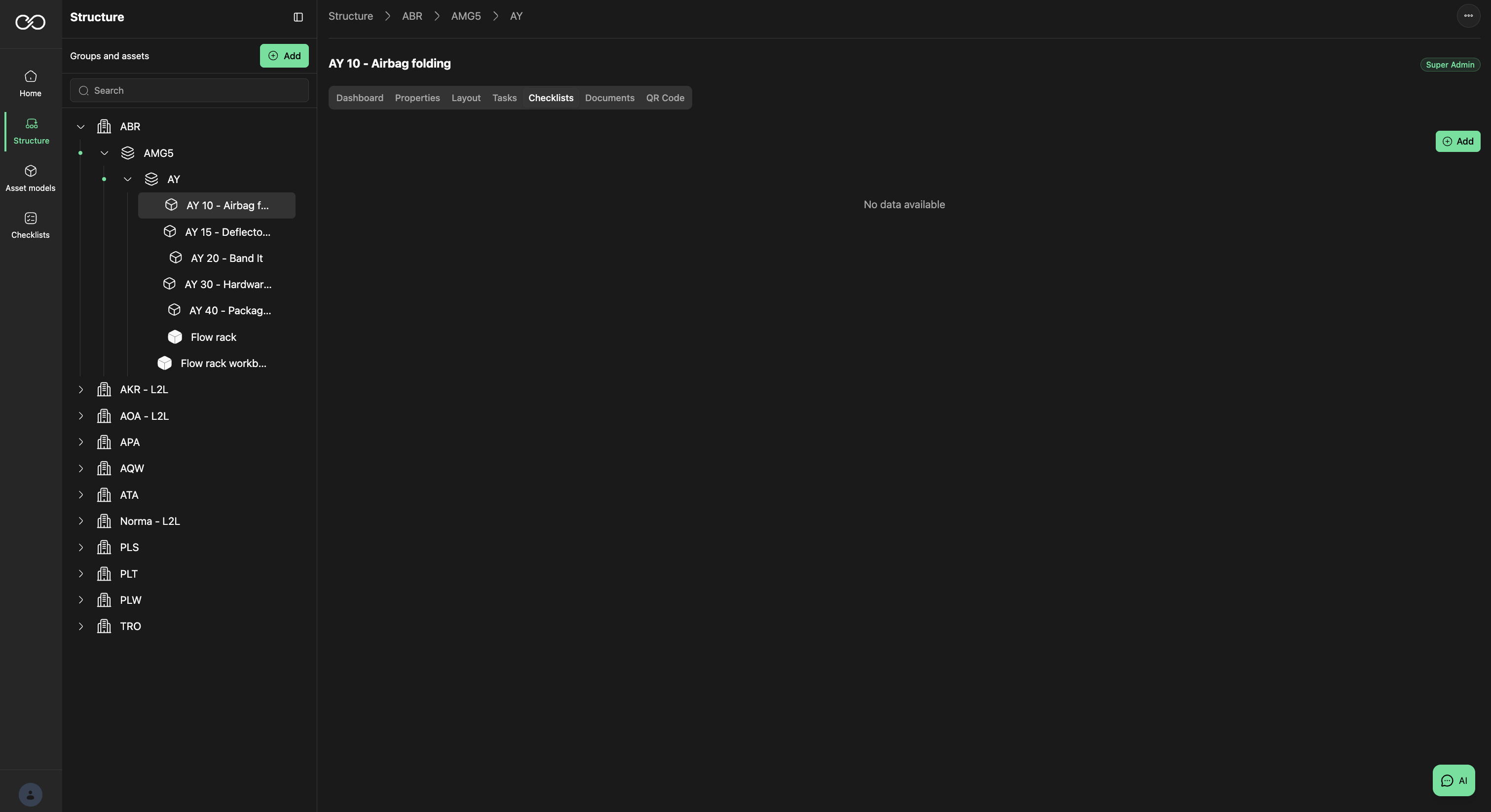
The Checklist tab shows the checklists assigned to the Asset — for example, daily maintenance. Add a defined checklist via Add.
Documents
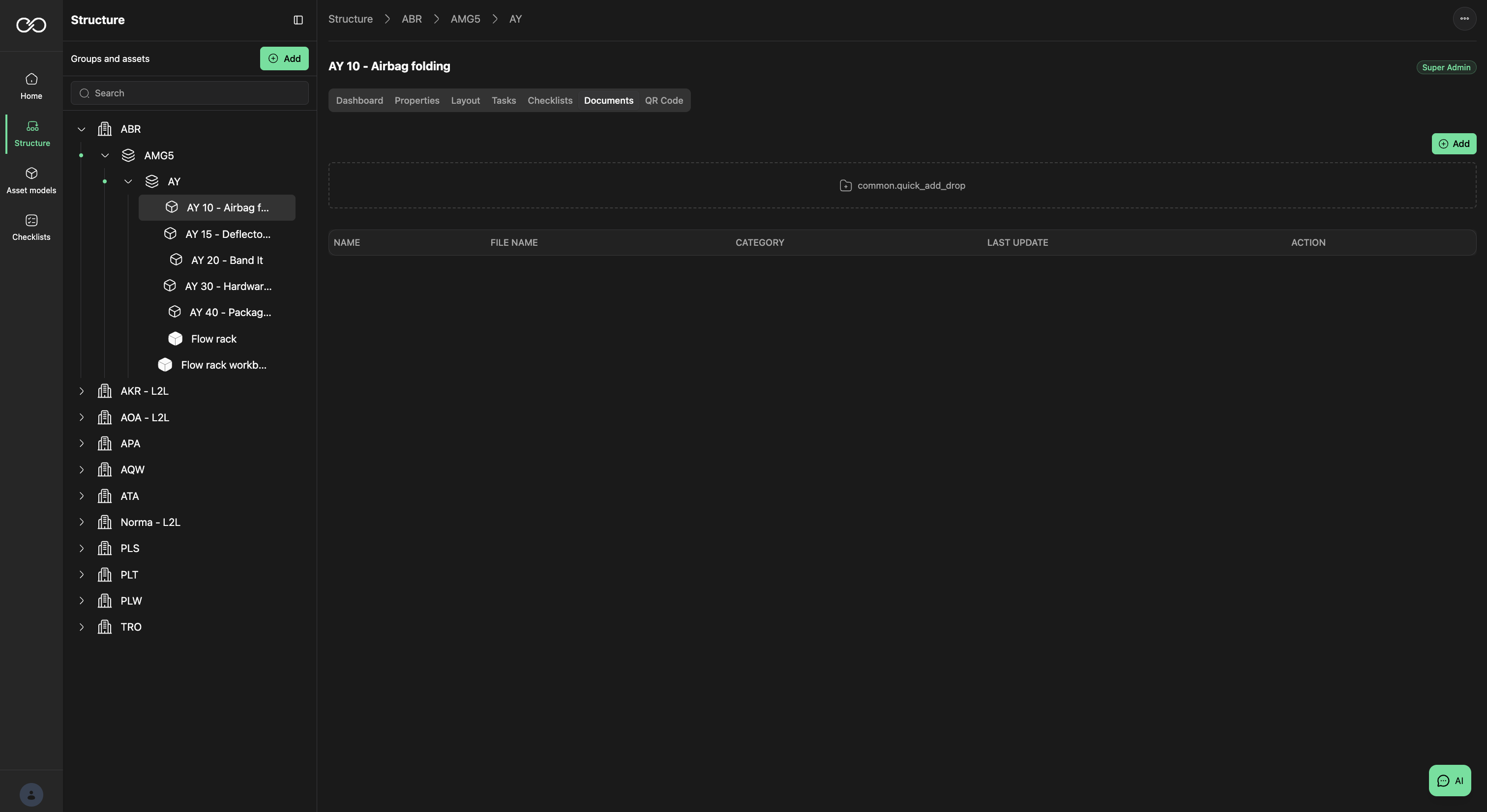
Add documents that are unique to the Asset — manuals, instructions, or similar — by dropping a file on the drop area or selecting Add. The documents will be known by the AI.
QR Code
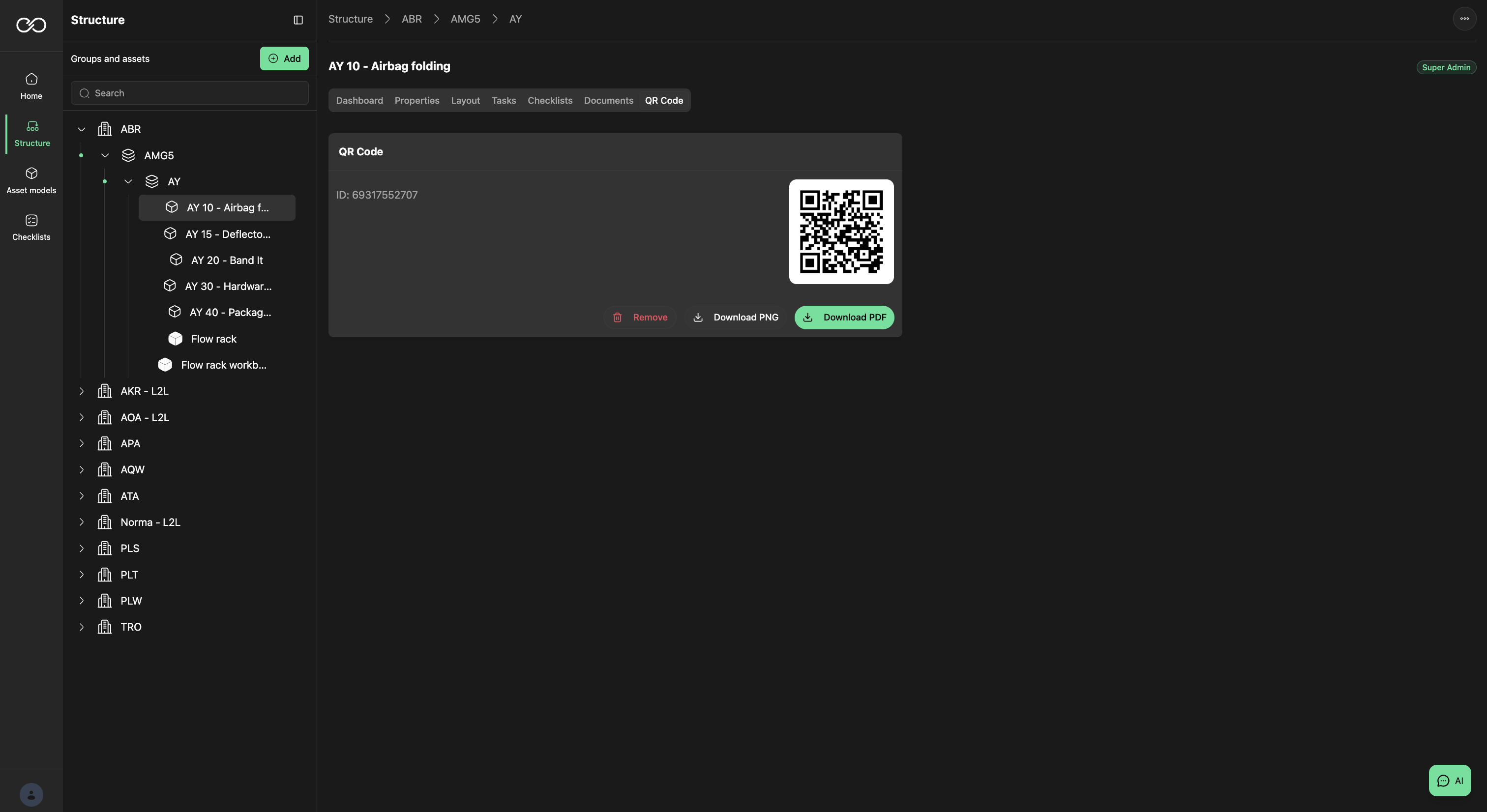
Assign a QR code to the Asset to identify it when using the Epicz Lab App. Either write your own QR code or generate one via Generate ID.
Was this article helpful?
That’s Great!
Thank you for your feedback
Sorry! We couldn't be helpful
Thank you for your feedback
Feedback sent
We appreciate your effort and will try to fix the article