Line Balancing
What you simulate
Line Balancing simulates a production line — its stations, the tasks performed at each station, the
operators that work them, and the flow of material between them.
The setup chain
The setup consists of a number of components that need to be configured. Each object depends on
the one before it: Begin at Plant and end at Scenario.
Plant | Top node. Sets Operator Speed and Operator Diameter. |
Asset Group | Hierarchical node under the Plant — Area, Line, …. |
Asset Model | Reusable workstation template (optional). |
Asset | An individual workstation. |
Feeding Asset | An external rack outside a workstation. |
Layout | Physical arrangement of Assets — version-controlled. |
Flow | Production sequence connecting |
Scenario | A Line Balancing or WIP run. |
Reuse existing structure to the largest possible extent.
AI assistance
There is the possibility to get deeper insight on all pages where there is an AI icon. The AI is not only
doing calculations and simulations, it is also context-aware and can answer questions about the page you are on, the line you are configuring, and the documents attached to the Plant or Asset Group.

Run a Line Balancing scenario
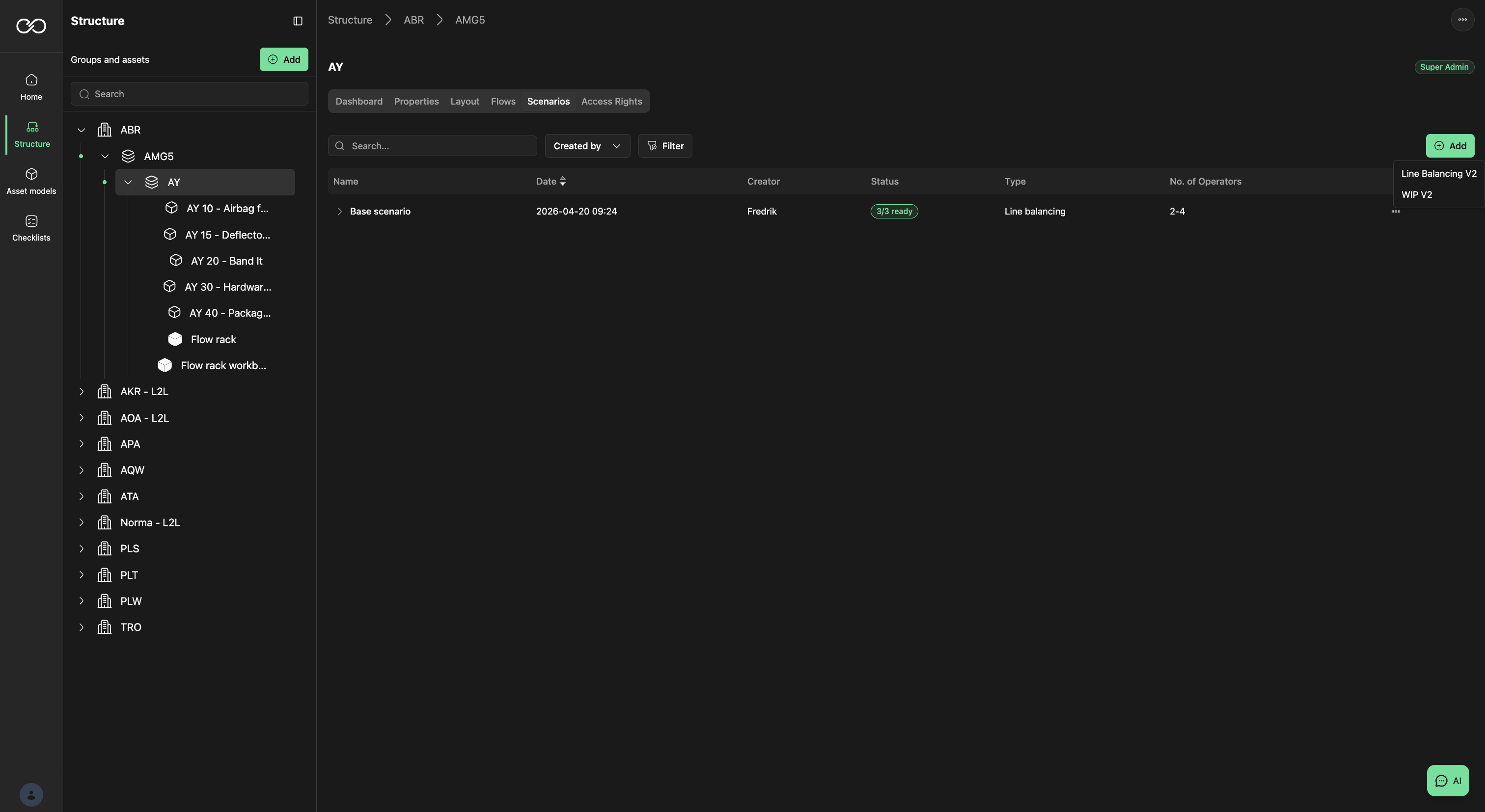
Add a new scenario from the line's Asset Group, configure it with the activated Layout and Flow versions, and launch the calculation.
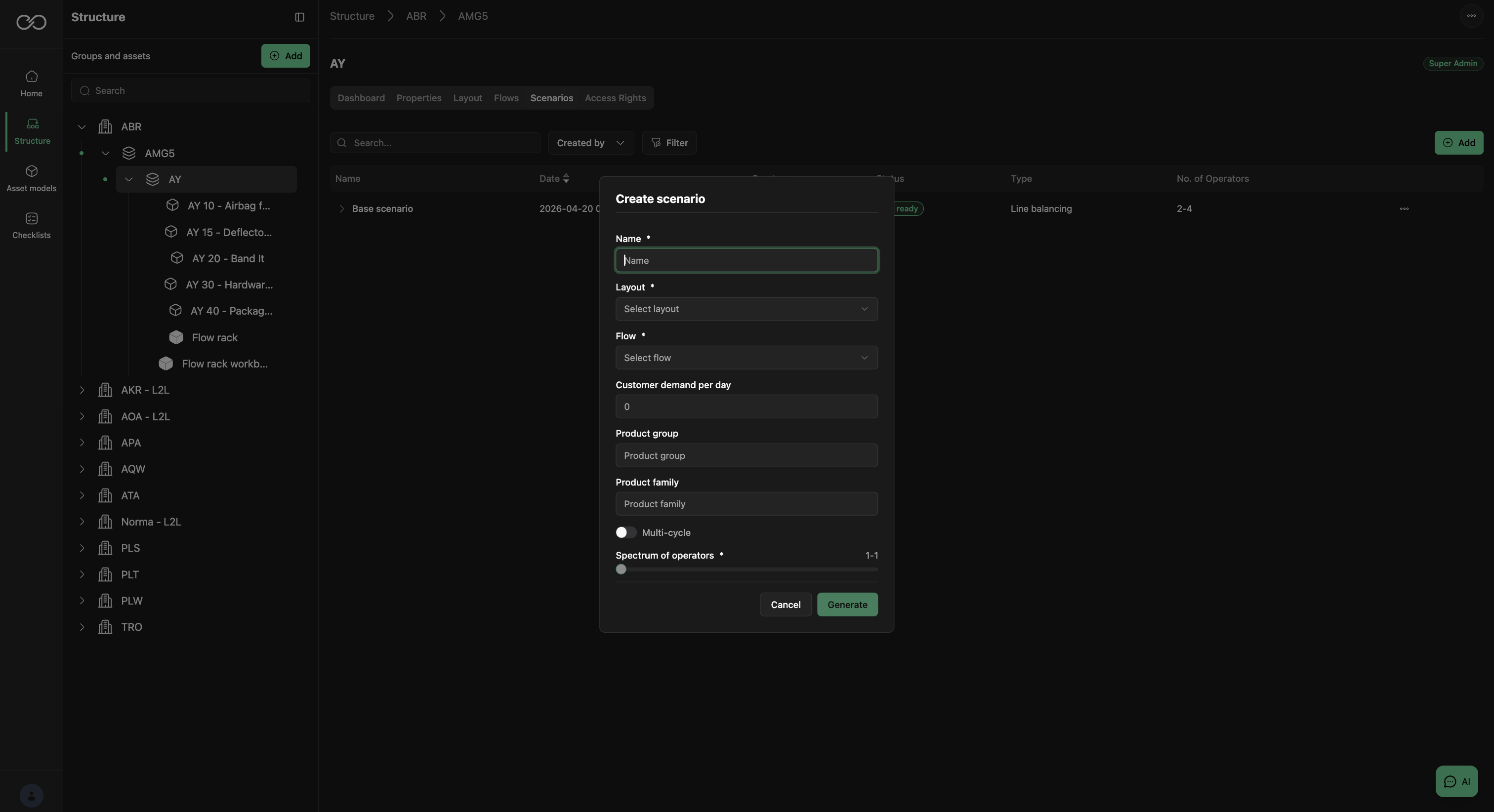
- Add a scenario by selecting Add and Line Balancing.
- Set the name of the Scenario.
- Select Layout — the layout must be activated to be selectable.
- Select Flow — the flow must be activated to be selectable.
- Set Customer demand per day (optional — used to estimate the number of operators).
- Set Product Group (optional).
- Set Product Family (optional).
- Set whether to run a Multi Cycle calculation (assigns one operator to an asset for a number of cycles, then a second operator for a number of cycles).
- Select the number of operators to balance for.
- Select Generate.
Calculation time
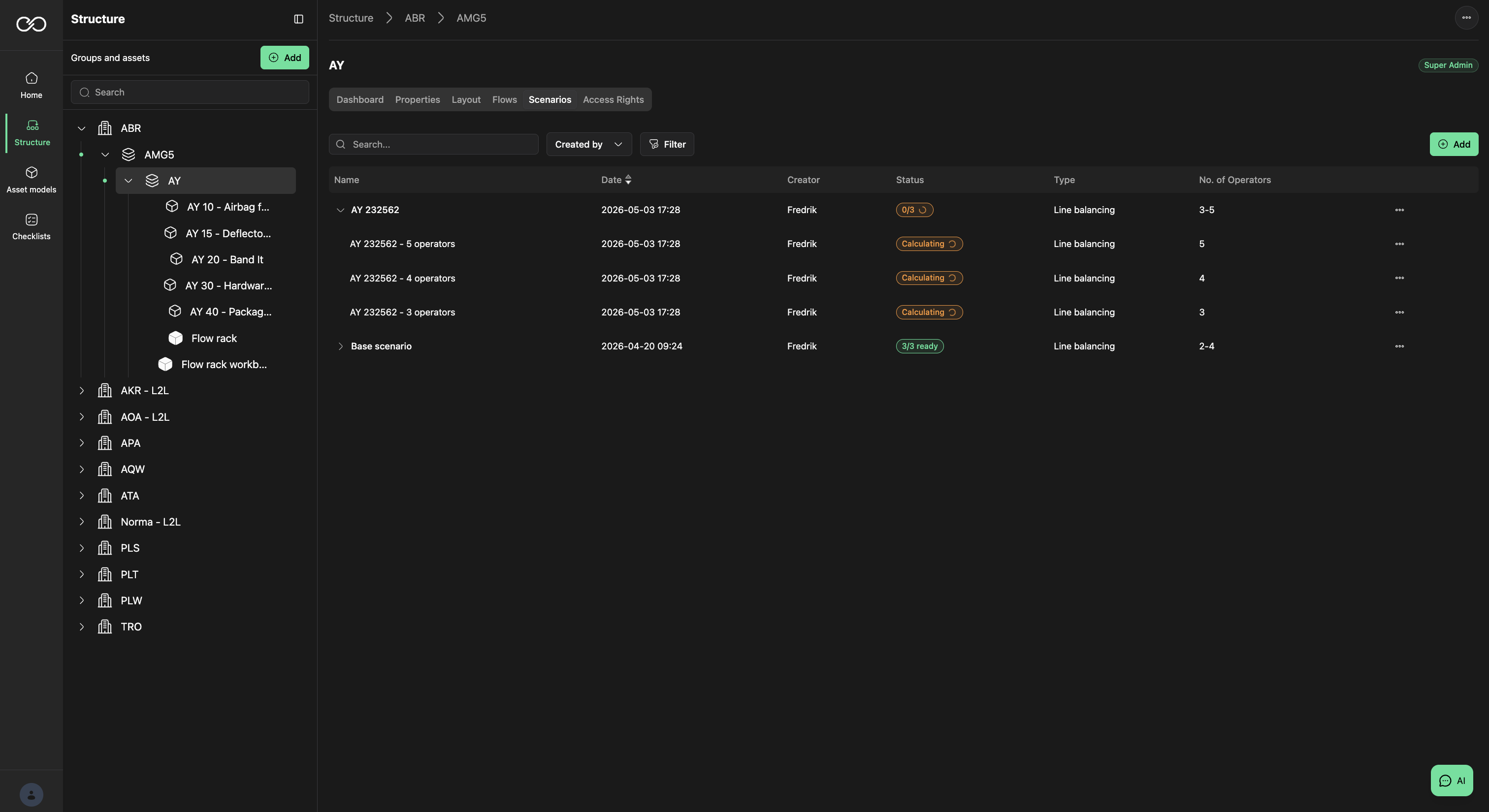
A standard calculation takes between 5 and 90 minutes depending on the complexity of the line and whether you selected Multi Cycle. Multi Cycle takes 2–3× a standard calculation, so plan for 10–270 minutes depending on complexity.
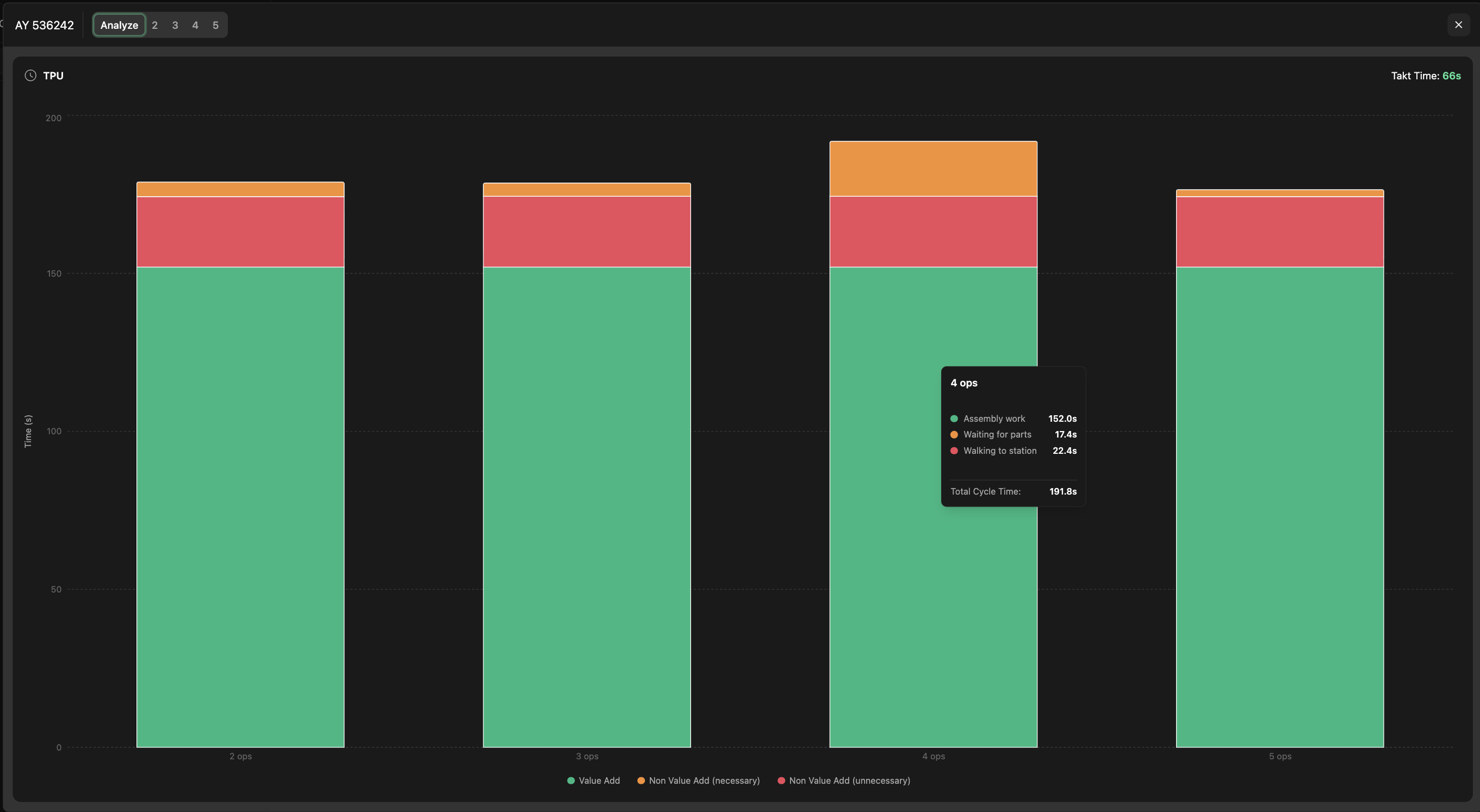
Result — Analyse (TPU chart)
The Analyse tab of the result shows the TPU chart across the different operator-count setups. The list of operator-count setups appears alongside the chart — select a specific setup for details.
Result — specific operator count
Selecting a specific operator-count setup shows the layout of the line and the path each operator will travel. Operator load is shown alongside the layout.
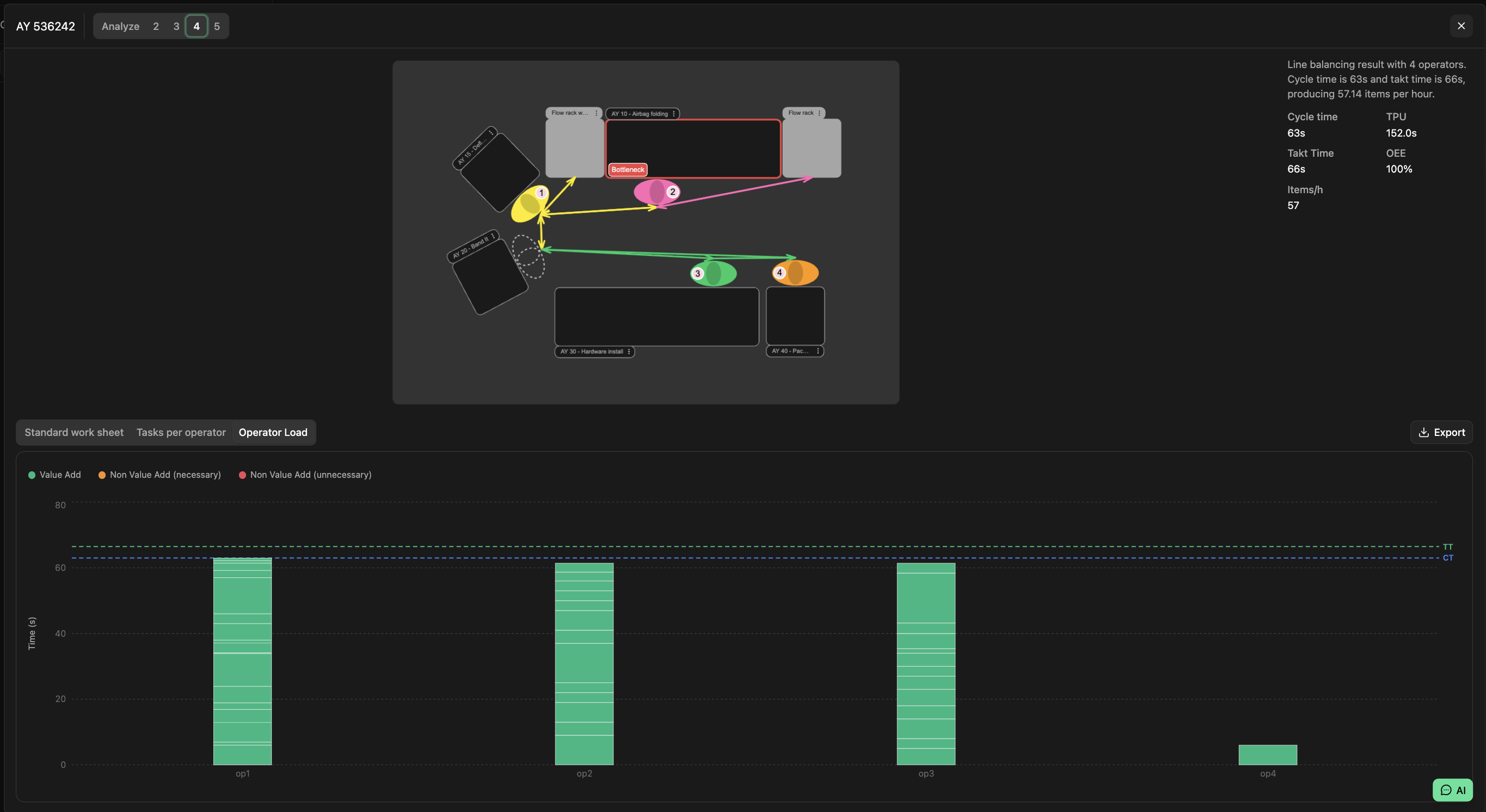
Result — Operator Load
The Operator Load view combines the layout, the operator paths, and the load per operator, with an additional details panel per operator. Each bar is split into Man (Necessary), Necessary Waste, and Unnecessary Waste; CT (cycle time) and TT (takt time) reference lines bracket the chart.
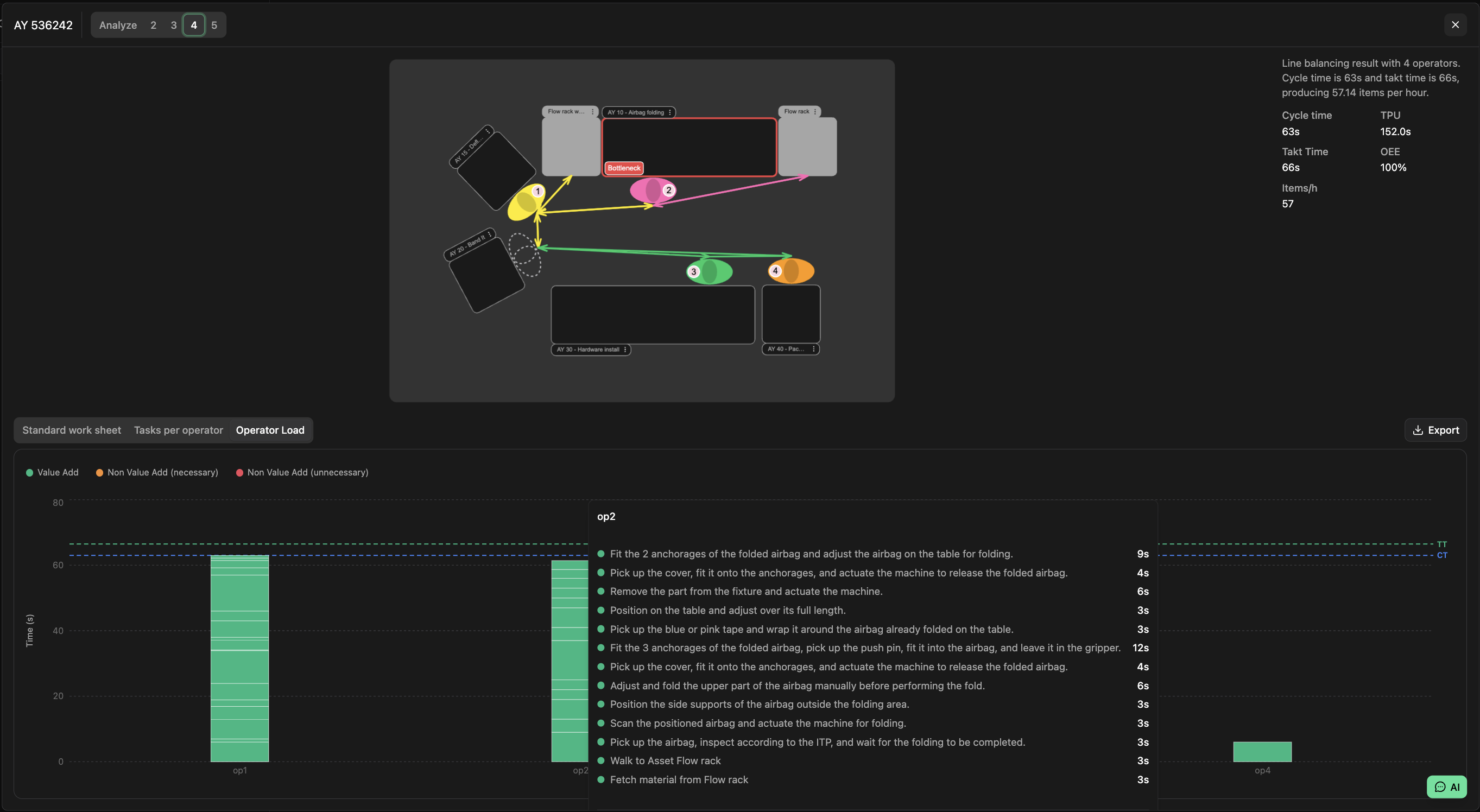
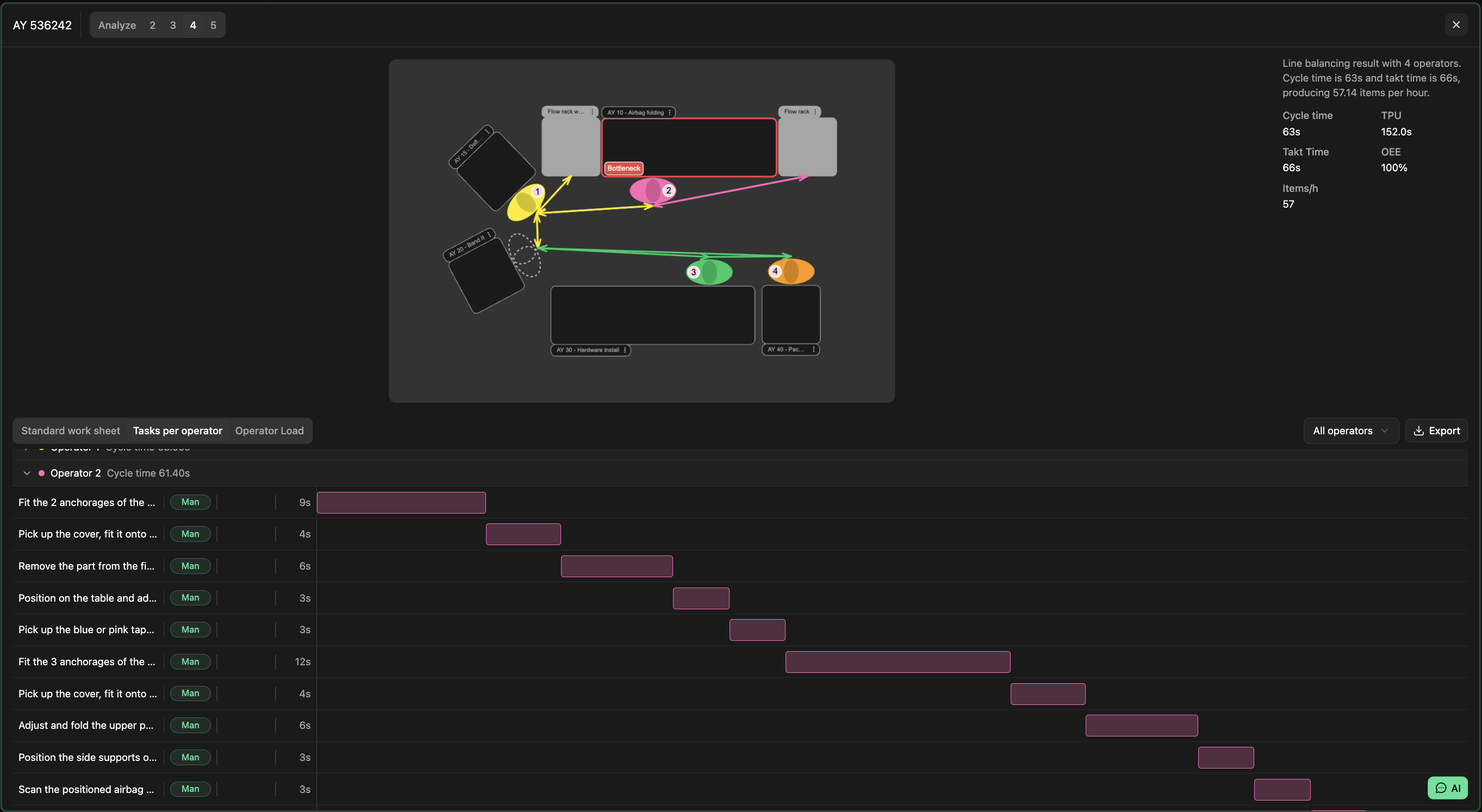
Result — Task per Operator
The Task per Operator view lists the tasks each operator is assigned to and at which Asset. You can filter to a single operator or show all, and export the setup to a shareable Excel file.
Result — Export
Export the result to Excel to share it. You can export with all operators combined on one sheet, or with one specific operator per sheet.
Result — Standard Work Sheet
The Standard Work Sheet shows the overall activities in the line setup. The number of cycles
displayed depends on the combination of alternatives in the model — for example, tasks marked as
repeated.
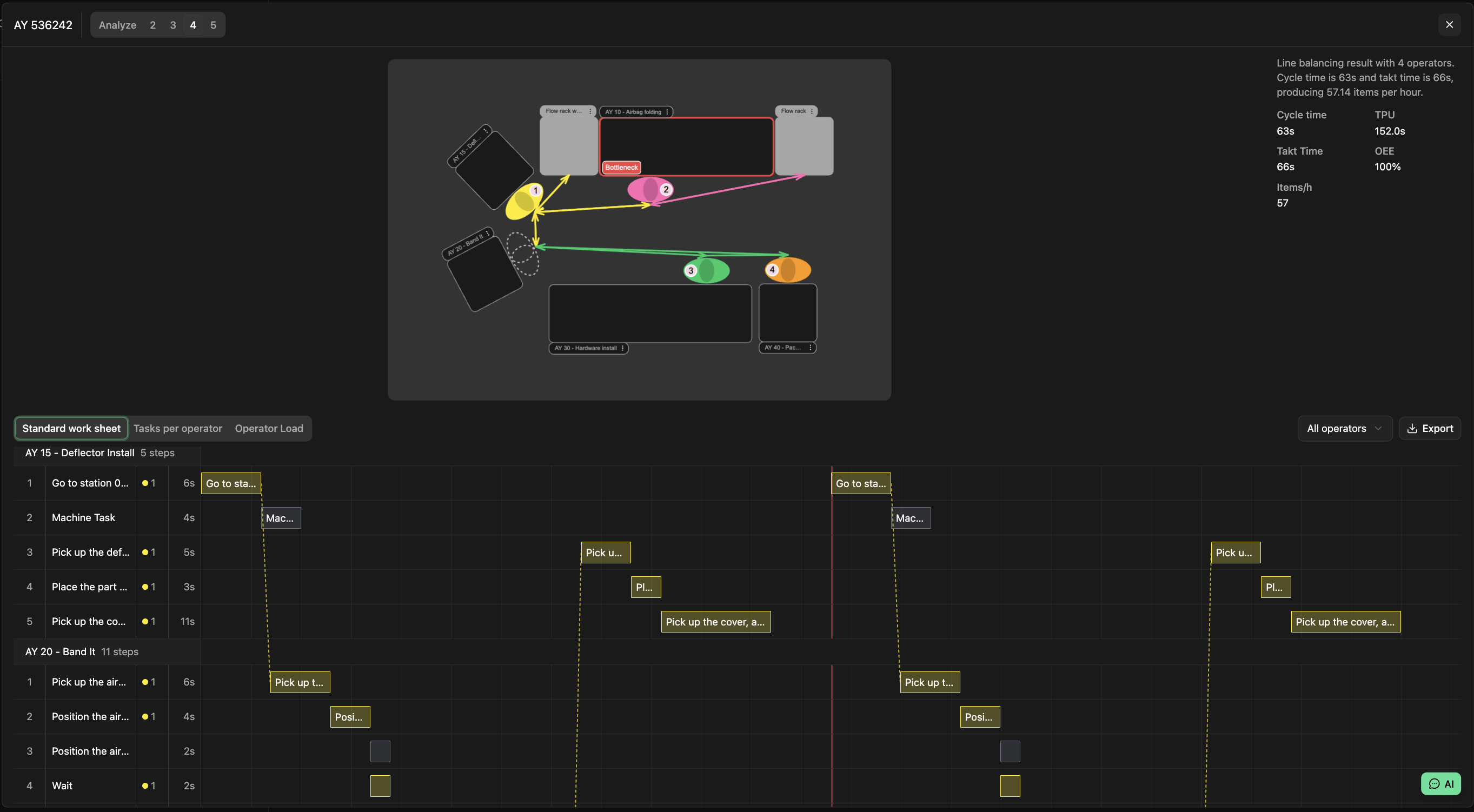
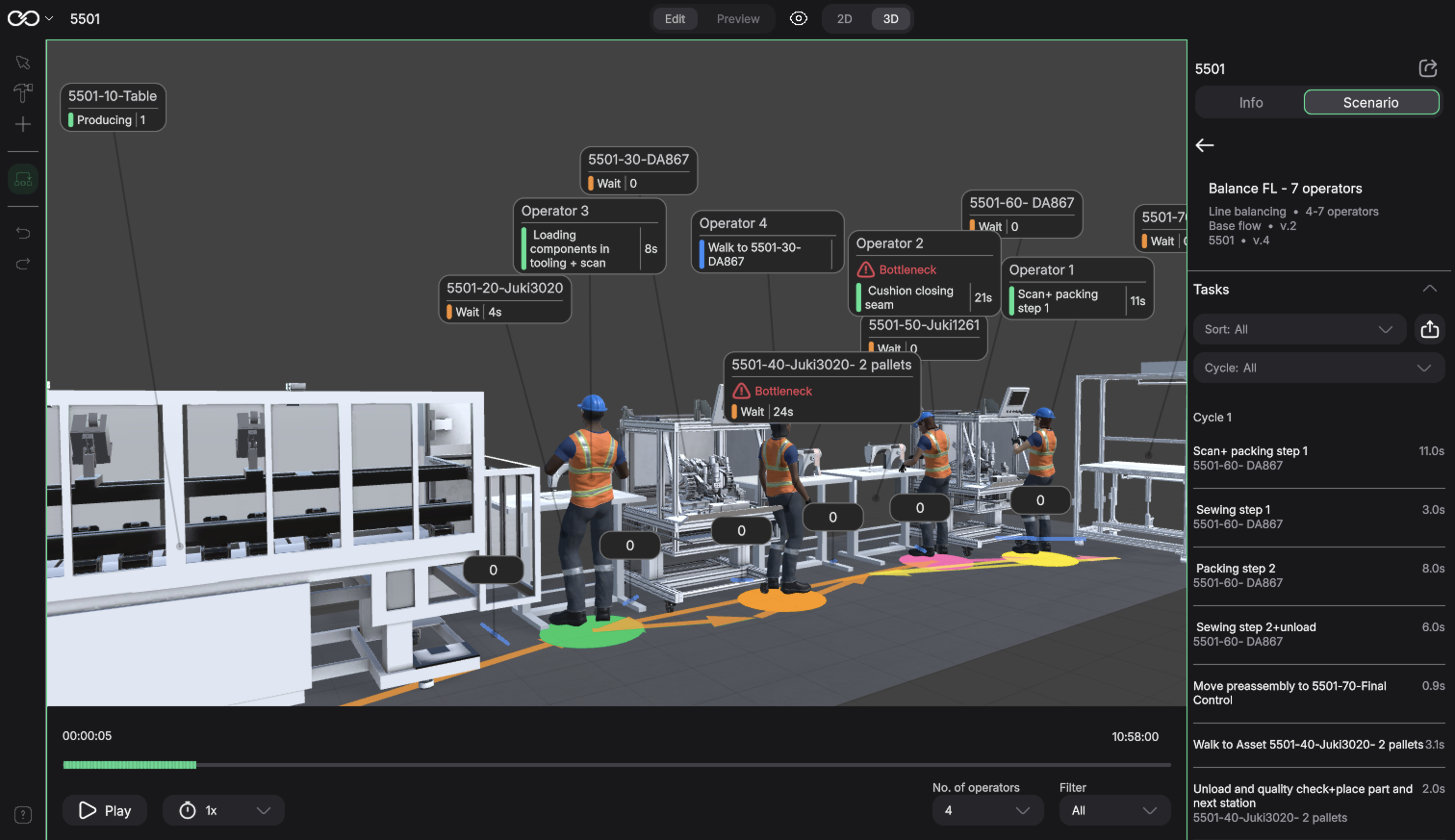
Coming soon: Line Balancing in 3D
It will be possible to see the result of a Line Balancing run in 3D. This is done through Factory Live
— a separate Epicz Lab application. You open Factory Live and load the Line Balancing result there
to visualise the line, the operator paths, and the loads in three dimensions.
Was this article helpful?
That’s Great!
Thank you for your feedback
Sorry! We couldn't be helpful
Thank you for your feedback
Feedback sent
We appreciate your effort and will try to fix the article